 Documentation
Task Management
Task Submission Page
Function Overview: The task submission page is used to configure, submit, and view quantum computing tasks on the PilotOS platform, supporting both real quantum chips and simulator tasks. Users can select computation type, choose backend, configure parameters, upload or edit quantum programs (QProg), and view execution results.
The page also supports querying historical tasks via Task ID. When a matching task is found, its parameters, QProg, and results (if available) are automatically restored to the form, enabling task reproduction or resubmission.
Page Entry:
Task Management → Task Submission
Access from My Tasks or Task Details page to restore task information
Page Structure:
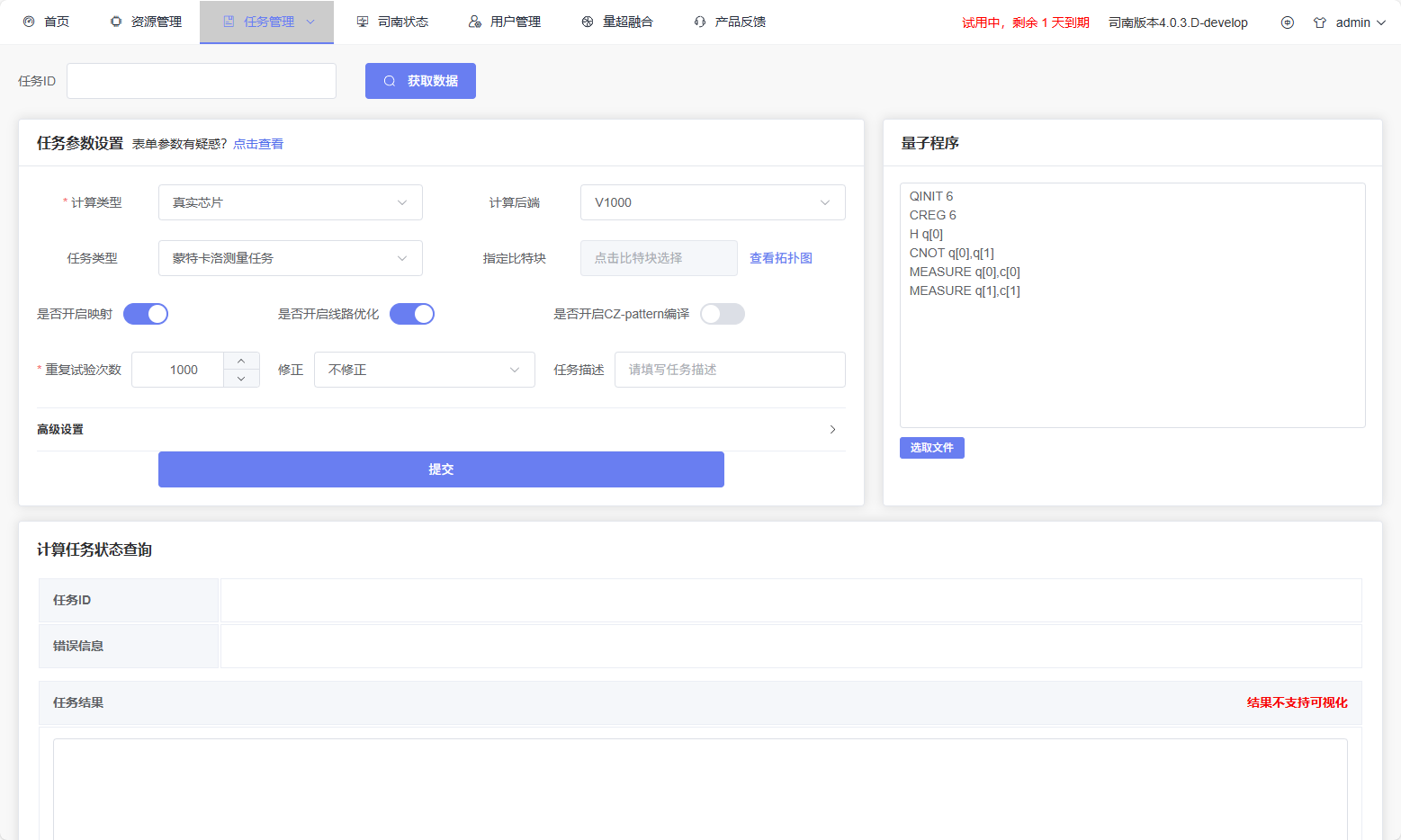
As shown in the figure, the task submission page contains four main functional areas:
Task Query and Recovery Area (Top): Used to query historical tasks and restore their parameters.
Task ID Input Field: Enter existing task ID
Query Button: Query task and automatically restore parameters, QProg, and results (if available)
Task Configuration Area (Left): Used to configure task parameters and select computing backend.
Computation Type Selection: - Full amplitude simulation - Noise simulation - Partial amplitude simulation - Single amplitude simulation - MPS simulation - Real quantum chip
Backend Selection: - Real chip tasks: Select Chip ID - Simulator tasks: Select Cluster ID
Common Parameters: - Measurement type - Number of shots - Target qubits - Specified qubit block (selected via topology dialog) - Mapping options - Noise model
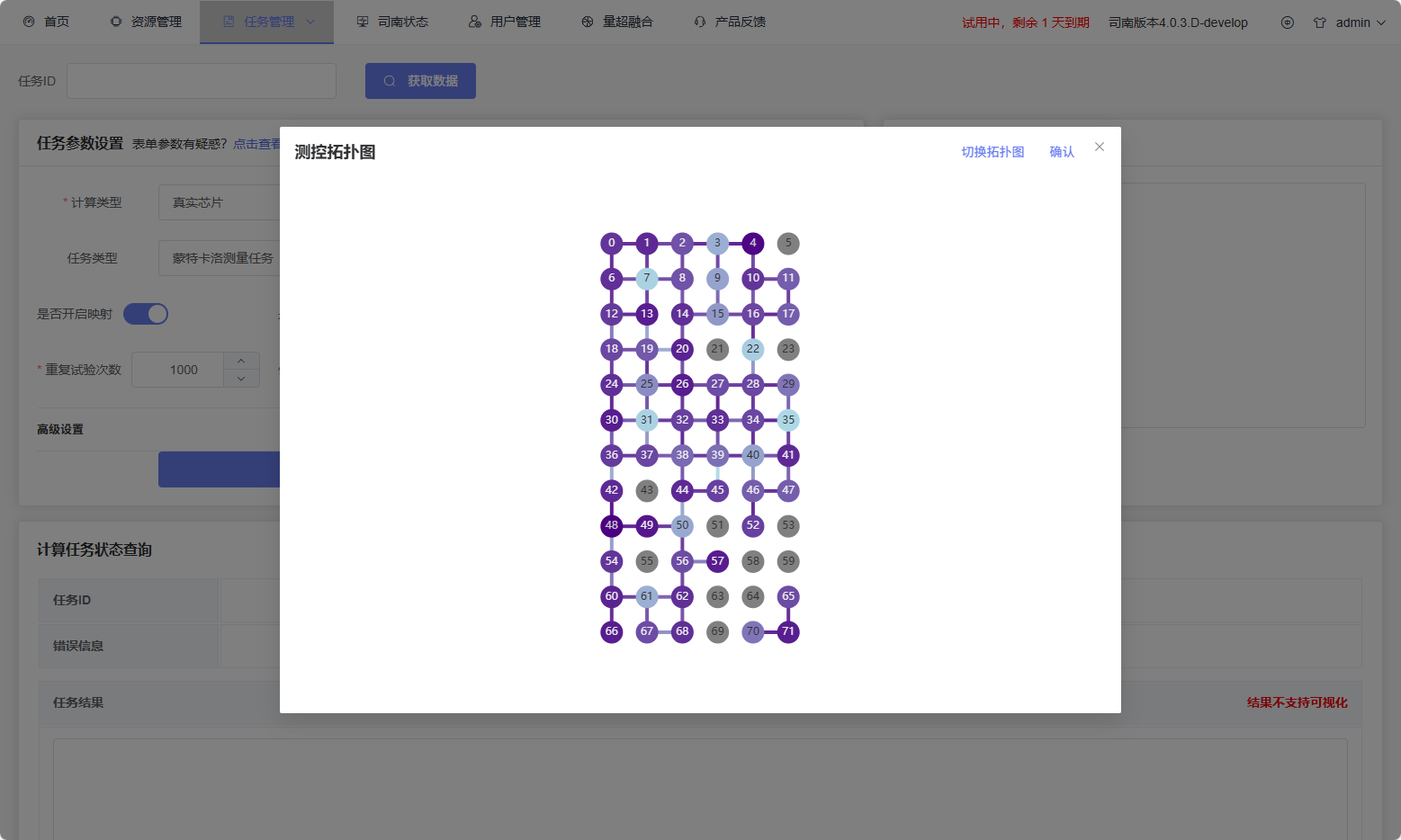
Chip Topology Dialog (Specified Qubit Block): When configuring specified qubit blocks, you can open the chip topology dialog to view the connection diagram and select or deselect physical qubit blocks.
Advanced Settings (Click to Expand): - Operating point label - Task priority - Callback address
Submit Button: Submit the configured task to the PilotOS system service.
Quantum Program Area (Right): Used to input or upload QProg.
Text Editor: Can paste QProg directly
File Upload: Supports
.txtfiles
Task Results Area (Bottom):
After querying or submitting a task, the following information is displayed:
Task ID
Error information (if any)
Pre-compilation / Post-compilation instructions
Task results
For tasks supporting visualization, results can be displayed as bar charts.
Operation Process:
(Optional) Query and Restore Historical Task Enter task ID and click
Query, the system automatically restores parameters, QProg, and task results (if available).Real Quantum Chip Tasks
Select computation type: Real quantum chip
Select Chip ID
(Optional) Select physical qubit block via topology dialog
Configure parameters such as measurement type, number of shots, etc.
Enable mapping to avoid conflicts between logical and physical qubits
(Optional) Configure advanced settings
Input or upload QProg
Submit task
Cluster Simulation Tasks
Select simulator type
Select Cluster ID
Fill in simulator-related parameters
Input or upload QProg
(Optional) Set priority or description
Submit task
My Tasks Page
Function Overview:
The My Tasks page is used to display and manage quantum computing tasks submitted by the current user in the PilotOS system service. Accessible via the My Tasks submenu under Task Management. On this page, users can view task lists, search history, filter tasks by multiple criteria, and navigate to task details page or task submission parameters page.
Page Layout:
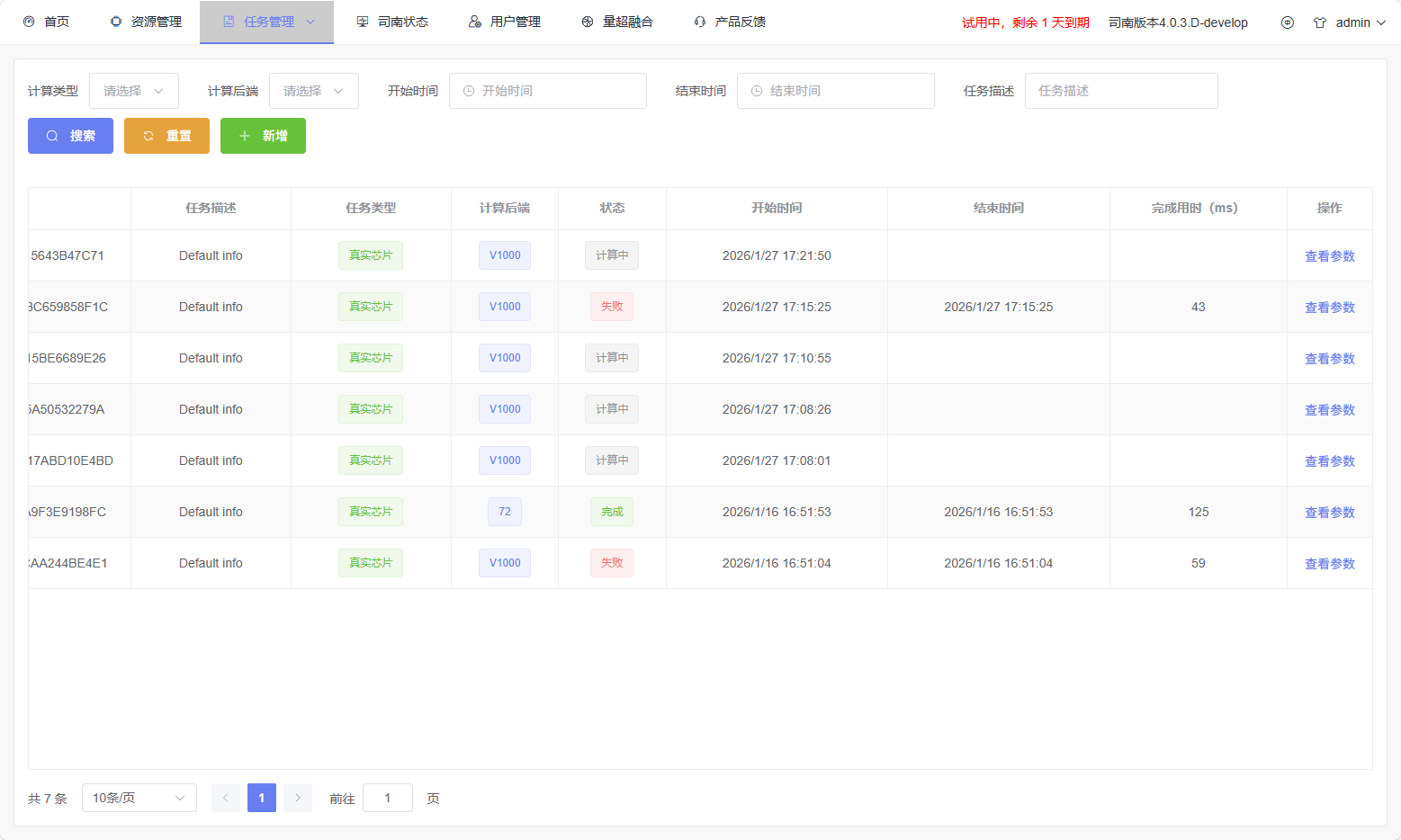
As shown in the figure, the My Tasks page mainly contains the following functional modules:
Task Query Module (Top): Provides multi-condition search functionality with the following filter options: - Computation type (such as full amplitude simulation, noise simulation, partial amplitude simulation, etc.); - Backend type (quantum chip or cluster); - Start and end time (task creation time range); - Task description (keyword search). The page also provides Search, Reset, and New Task buttons for quick operations.
Task List Module (Main Area): Displays task information in table format, including: - Task ID: Click to enter task details page; - Task Description - Task Type - Computing Backend - Task Status: such as Running, Completed, Failed; - Start Time, End Time, and Total Duration - Operations: Click View Parameters to navigate to the task submission page to view submission configuration.
Task Details Page
Function Overview:
The task details page is used to view detailed information and timestamp data for a single quantum computing task. Access via Task Management → Task Details, or click the task ID in the My Tasks list to open this page. Users can query tasks by task ID and view timestamps for each processing stage, task status, and computation results.
Page Layout:
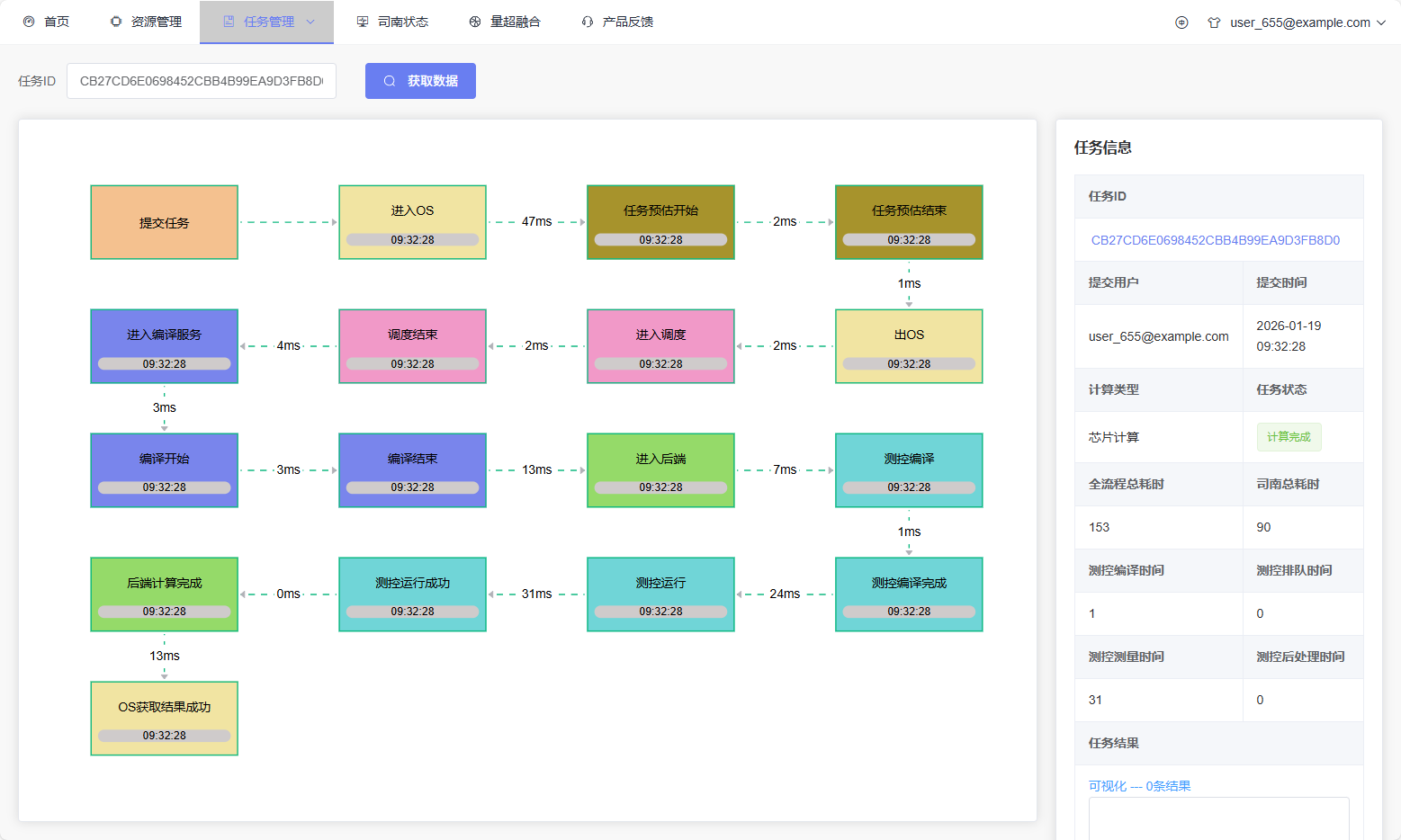
The task details page contains the following functional modules:
Task Query Module (Top): Enter task ID and click Search to obtain task details and timestamp data.
Task Timestamp Visualization Module (Left): Displays the execution time nodes and status of the task in each module in flowchart form. Empty state is displayed when there is no task data.
Task Information Module (Right): Displays task details in card form, including: - Task ID (clickable to navigate to task submission page to view parameters); - Error information (if any); - Submitter; - Submission time; - Computation type (quantum chip or cluster computing); - Task status; - Total processing time, Pilot total time, and time consumption for each stage (compilation, queuing, measurement, post-processing, etc.); - Task results.
Real-time Task Status Page
Function Overview:
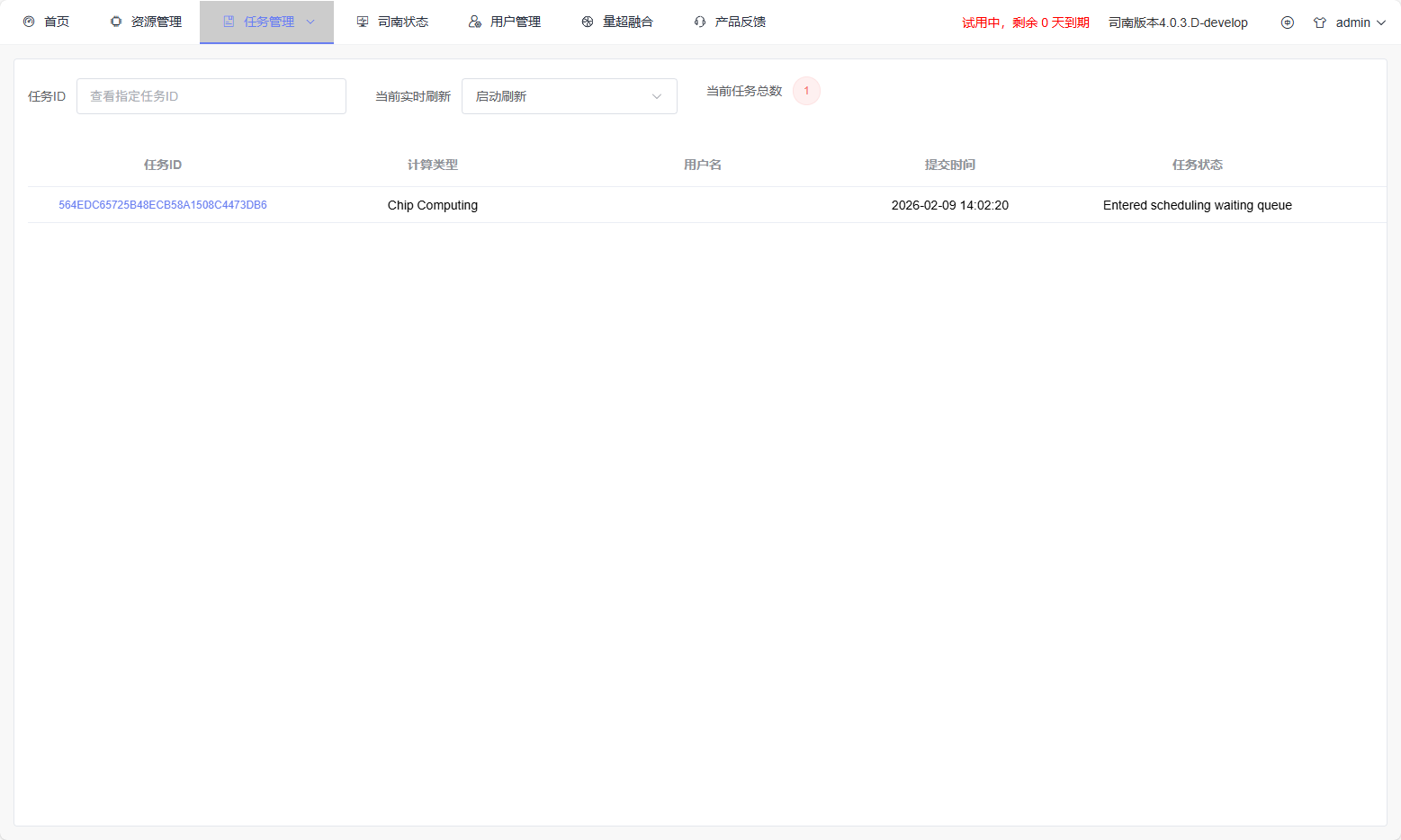
The real-time task status page is used to display tasks currently queued and executing in the system. Access via Task Management → Real-time Task Status. Users can monitor active tasks, view latest update times, check task details, and support searching by task ID.
Page Layout:
Task Query Module: - Task ID Query: Enter task ID to locate specific tasks; - Auto-refresh Control:
Enable Refresh: Continuously update task status;
Stop Refresh: Pause automatic updates.
Total Tasks: Displays the total number of queued tasks in the system.
Task List Table: Displays tasks in a sortable table with columns including: - Task ID (click to navigate to task details page); - Backend; - Submitter; - Submission Time; - Task Status; - Status Code.
User Task Management Page
Function Overview:
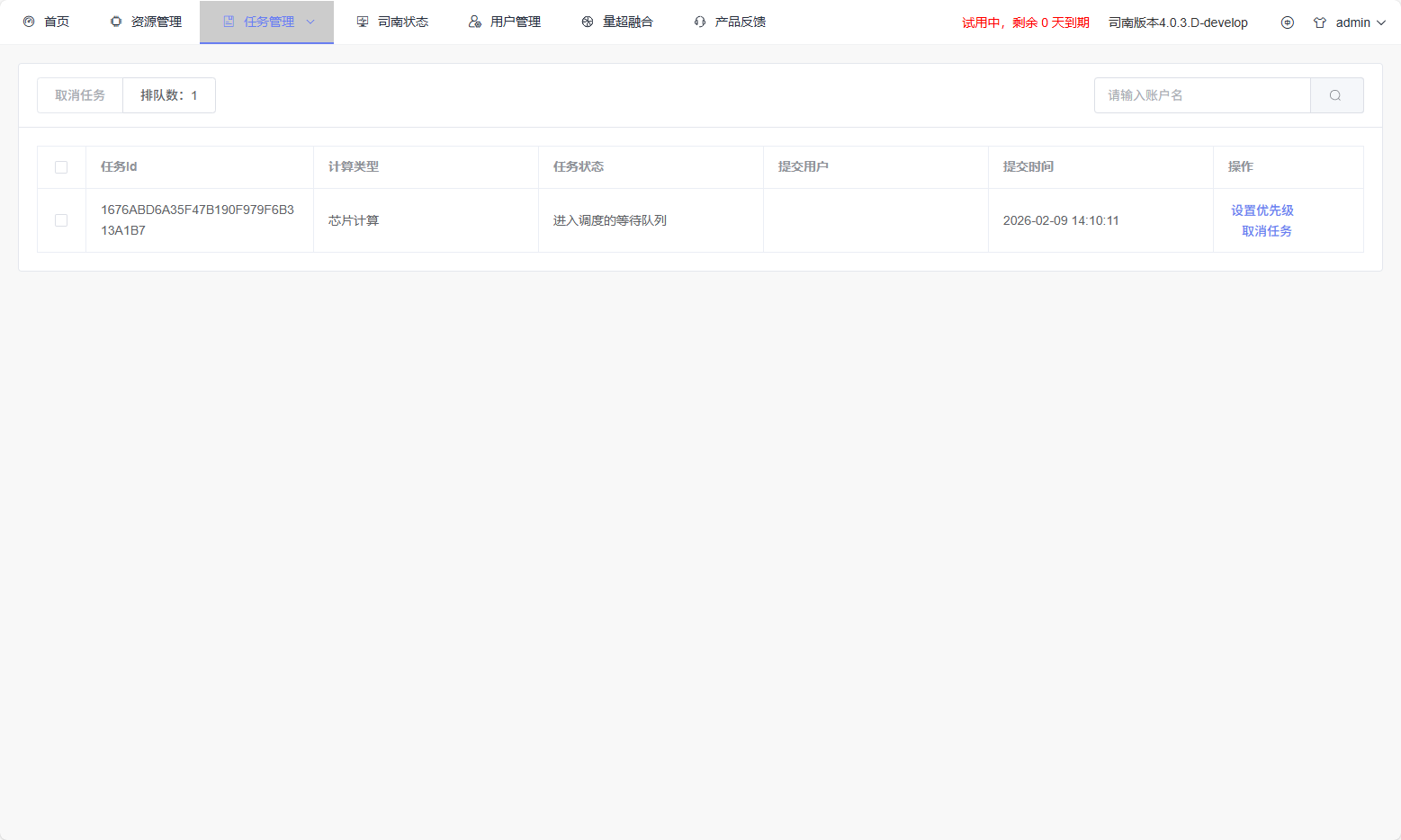
The user task management page is used to display and manage queued tasks submitted by users. Users can view their task queue on the backend and cancel their own tasks. Administrators can manage tasks from all users.
Access path: Task Management → User Task Management.
Page Layout:
Top Operation Area: - Batch Cancel: Select multiple tasks and click Cancel Task. - Queue Size: Displays current total task queue count. - Account Name Filter: Administrators can filter tasks by submitter account.
Task List Table: Displays queued tasks with columns including: - Select (users can only select tasks they submitted); - Task ID; - Computation Type; - Task Status; - Submitter; - Submission Time; - Operations: Set priority / Cancel task.
Task Report Page
Function Overview:
The task report page is used to query, filter, and export historical task data. Users can filter by time range, account name, computation type, and task status, with support for customizing displayed columns. The page supports task list display, field selection, task ID copying, and CSV export.
Access path: Task Management → Task Report.
Page Layout:
Query Conditions: Configure report filtering: - Time Range (Required):
Use date-time selector to select start and end times.
Account Name: Filter tasks by submitter.
Computation Type: Including simulators and real quantum chips.
Task Status: - Computing - Completed - Failed - Queued - Cancelled
Operations: - Search: Load filtered tasks; - Download: Export results in CSV format.
Column Selection: Selectable display fields include: - Task ID - Account name - Task status - QProg - Backend ID - Task type - Configuration information - Task results - QST results / QST fidelity - Various time metrics - Start time / End time - Error code / Error information - SN / MC timestamps - Task description