Documentation
PilotOS Status Page
Function Overview: The PilotOS status page is used to monitor the overall operational status of PilotOS system services, including system resource usage, module status, task lists, and system control operations. Administrators can directly perform Restart Pilot, Shutdown Pilot, or Upgrade PilotOS operations on this page.
Page Layout: As shown in the figure, the PilotOS status page contains the following functional modules:
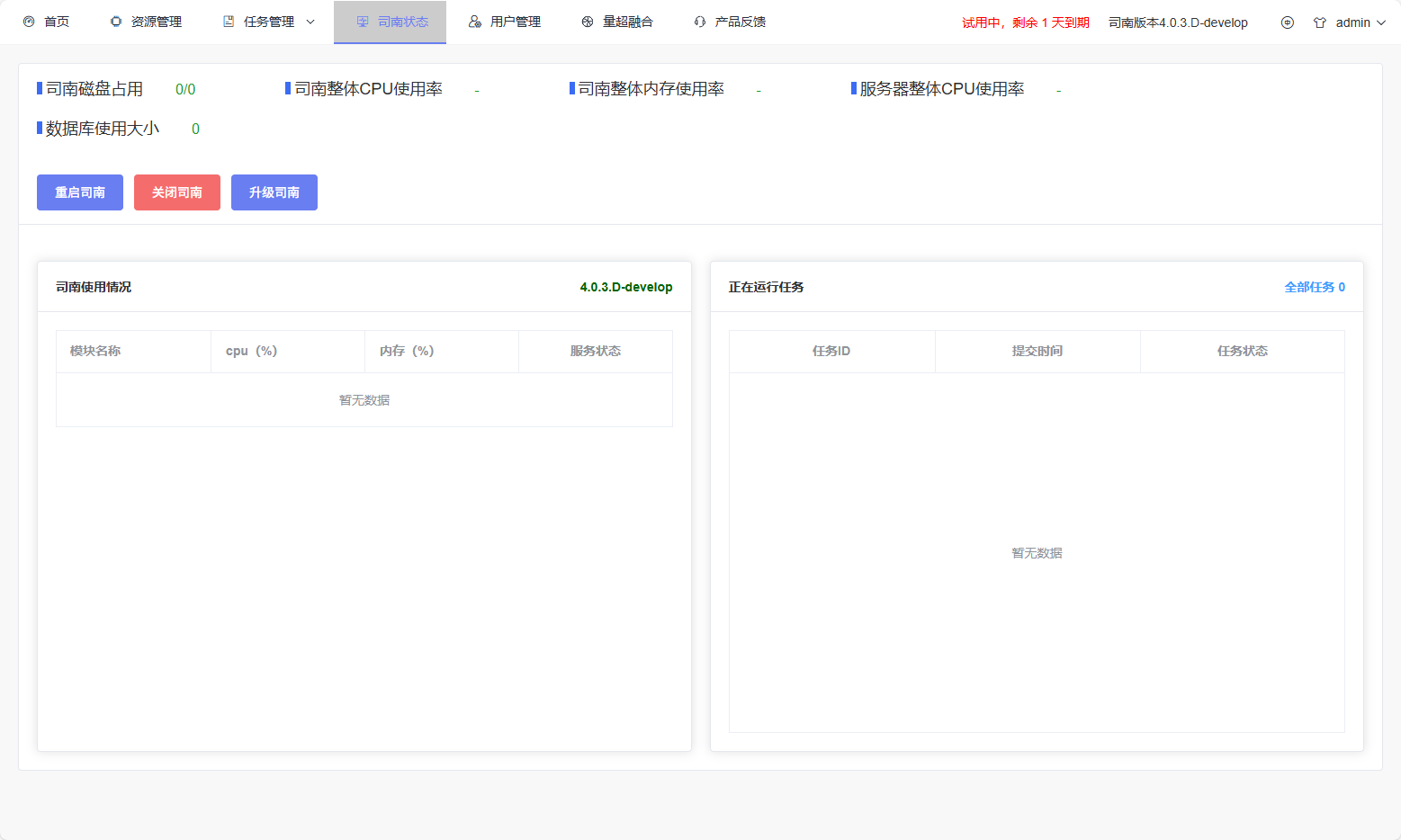
System Status Overview Module: The top of the page displays key resource usage information in card form, including:
Disk usage (used space / total space)
PilotOS system service CPU usage
PilotOS system service memory usage
PilotOS host CPU usage
Database space usage
When users have administrator privileges, this area also provides Restart Sinan, Shutdown Sinan, and Upgrade Sinan options. Clicking the upgrade button allows access to the system version upgrade process (detailed explanation refers to the Upgrade Sinan function module in this section).
Module Status Table Module: The left card displays the real-time operational status of each Pilot system module, including:
Module name
Module CPU usage
Module memory usage
Service status (Normal / Abnormal)
Service status is dynamically determined based on module CPU usage and displayed through color labels for intuitive presentation.
Task Status Table Module: The right table displays brief information about currently running tasks, including:
Task ID
Submission time
Task status
The total number of tasks is displayed in the upper right corner of the card. Clicking
All Tasksnavigates to the real-time task status page for detailed progress.Upgrade Sinan Function Module: The Upgrade Sinan function is used for system version updates.
Upgrade Entry: Users can access the upgrade process through the Upgrade Sinan button at the top of the page or the Sinan version button in the top navigation bar. This function is only available to users with administrator privileges.
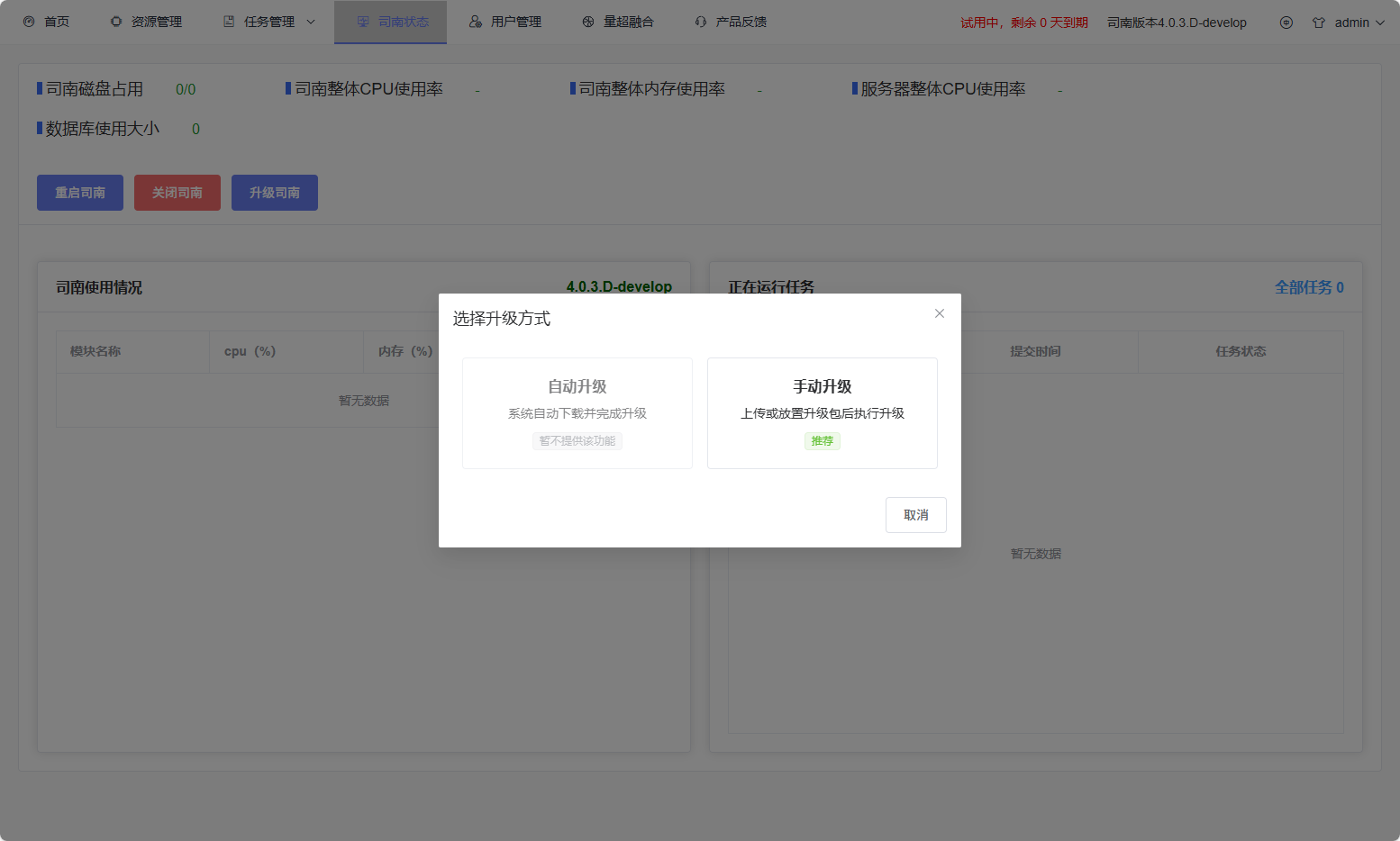
Upgrade Process: The upgrade process consists of the following steps: 1. User clicks the upgrade button, and the system displays an upgrade method selection dialog:
Automatic Upgrade: The system automatically downloads and completes the upgrade (this feature is not currently available in the current version).
Manual Upgrade: Upload or place the upgrade package and then perform the upgrade (recommended).
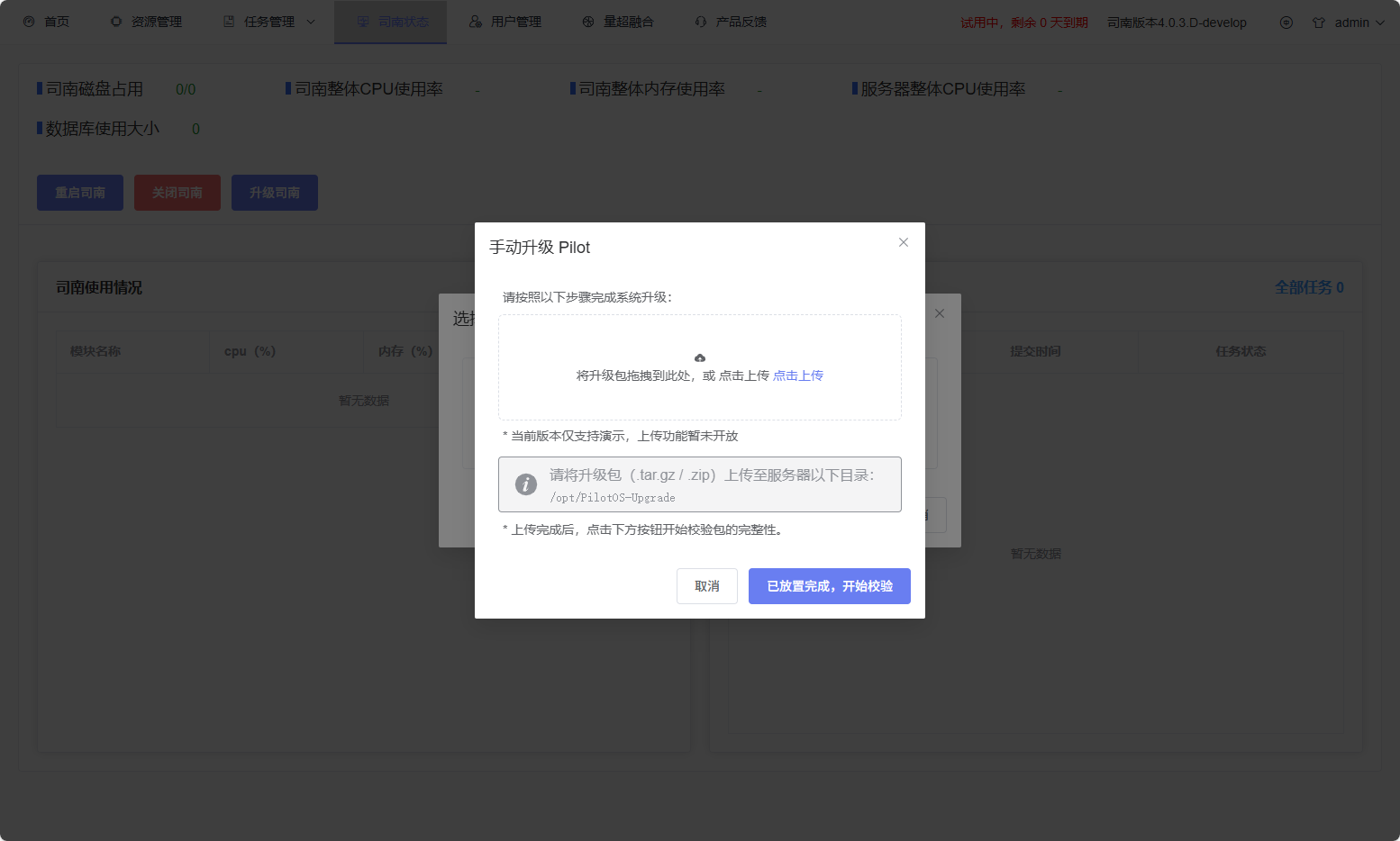
After selecting manual upgrade, the system displays an upgrade guide dialog. Users need to place the upgrade package (
.tar.gz/.zip) in the server’s designated directory:/opt/PilotOS-Upgrade.Click the Placement Complete, Start Verification button, and the system automatically scans the upgrade package in the designated directory.
If multiple upgrade packages exist, the system displays an upgrade package selection dialog. Users can view the version number, build information, package size, and upload time of each upgrade package, and select the target upgrade package; the system defaults to selecting the latest version.
The system automatically verifies the integrity and security of the selected upgrade package. After verification passes, the new version information confirmation dialog is displayed.
User clicks the Start Upgrade Now button, and the system enters the upgrade state.
During the upgrade process, the page displays the upgrade progress and current operation status in real-time (e.g., notifying the upgrade service, extracting and replacing system files, restarting Sinan services, etc.).
After the upgrade is complete, the system automatically refreshes the page and enters the new version.
Notes: - Please do not close the browser or refresh the page during the upgrade process. - System services will be temporarily interrupted during the upgrade. - It is recommended to perform upgrade operations when the system is idle. - Please ensure no important tasks are running before starting the upgrade. - If the upgrade fails, please contact operations personnel promptly. - Forced interruption of the upgrade may cause system abnormalities or failure to start.