 OriginQ Cloud

Quantum Programming MCP
Connect your AI to a real quantum computer, so that programs are no longer just theoretical discussions
MCP Overview
Quantum Programming MCP
QPU Device AccessTask SubmissionReal - Machine ExecutionTask ManagementSKILL PartnerIt is a service connector that connects AI assistants to the “quantum cloud arm”. After installation, quantum programs are no longer just code on the screen—they can directly connect to the OriginQ Cloud, help you send tasks to real quantum chips for execution, and obtain genuine running results.
 Note: Please try to use with QPanda3 Quantum Programming SKILL Library (click to view) to achieve a complete quantum programming experience.
Capability Scope
By configuring the Quantum Programming MCP, AI can help you complete work in the following aspects:
| Capability Domain | Specific Content |
|---|---|
| Quantum Device Access | Real-time query the list of available QPU devices on the OriginQ Cloud, obtain chip qubit count, capability parameters, and current running status, etc. |
| Circuit Sampling | Submit quantum circuits to real quantum computers for execution, support specifying measured qubits and sampling times, and return the statistical distribution of measurement results |
| Expectation Value Estimation | Submit quantum circuits and observable quantum states for expectation value calculation, support multiple observable measurement formats |
| Task Management | Support one-click submission of quantum computing tasks, view task execution status, obtain calculation results of completed tasks, and submit task lists |
| Batch Operations | Submit multiple quantum circuits for batch sampling or batch expectation value estimation at the same time, reduce submission overhead, and efficiently execute large-scale computing tasks in parallel |
Usage Method
Prerequisites:
Configuration Method:

Configuration File Import
Directly import the JSON configuration file in the client to complete the MCP service connection.

UI Interface Filling
Manually fill in the MCP information in the tool's MCP management interface to complete the service connection.

One - click Configuration Script
Execute the one - click configuration script to quickly complete MCP service configuration and SKILL synchronization installation in the tool.
Note: If you find all the above configuration methods difficult, you can also send the MCP's JSON template to AI and tell AI: Help me configure this MCPConfiguration Method Specific Operations:
Open the tool's settings page, find the MCP - related entry (the name varies by tool, such as "MCP Server", "Model Context Protocol", "Integration", etc.), add a new MCP server, click "Copy JSON Configuration Template" at the top, paste it in, replace with your API Key, and save.
Open Codebuddy's settings page
Find the MCP - related entry in the settings menu
Select "Configure MCP"
Paste the JSON content into the automatically opened mcp.json file
Replace the key with your OriginQ Cloud API_Key
Save and click the refresh button to connect
Note: Due to different configuration requirements of MCP across clients, please follow the specific specifications of the tool when pasting. If there are special requirements, adjust the JSON template accordingly to fit the format.Some tools support remote MCP service information filling and invocation (such as CLine). In these tools, open the MCP management interface and fill in the following information to successfully connect to the MCP service:
It can help you automatically complete MCP configuration and SKILL installation.
| What you need | Version requirements | Description |
|---|---|---|
| Python | >=3.11 | Python needs to be installed on the computer |
| UV | — | A Python package management tool, the script uses it to automatically handle dependencies |
Currently, a variety of AI coding tools are supported: OpenCode, Claude Code, Codex, Gemini CLI, CodeBuddy, Cline, and others; you may also run the script below to check the supported list in real time, which we update periodically.
uv run prepare_qpanda3_ai_kits.py listOpen the terminal, cd to the directory where the script is located, and run the following command to complete:
uv run prepare_qpanda3_ai_kits.py prepare <Tool Name> -k <Your API_Key>For example, if you are using CodeBuddy, after running the following command, the script will automatically help you write the MCP server connection information into CodeBuddy's configuration file, and then install the QPanda3 quantum programming skill package to CodeBuddy's skill directory:
uv run prepare_qpanda3_ai_kits.py prepare codebuddy -k <Your API_Key>The corresponding to the 6 AI coding tools in the command line is as follows:
| Tool Name | Command Line Parameter Name |
|---|---|
| OpenCode | opencode |
| Claude Code | claude |
| Codex (OpenAI) | codex |
| Gemini CLI | gemini |
| CodeBuddy | codebuddy |
| Cline | cline |
Script supports two installation levels:
| Level | Specific Content |
|---|---|
| Global (Default) | uv run prepare_qpanda3_ai_kits.py prepare <Tool Name> -k <Your API_Key> |
| Project - level | uv run prepare_qpanda3_ai_kits.py prepare <Tool Name> -k <Your API_Key> -p |
If you are unsure of which tools are installed, or wish to configure all installed tools in one go, execute the command below without specifying a tool name. The script will automatically scan your system, identify installed supported AI tools, and configure them individually:
uv run prepare_qpanda3_ai_kits.py prepare -k <Your API_Key>If you no longer need it in the future and want to clean it up, it's very simple:
To uninstall the configuration of a specific tool:
uv run prepare_qpanda3_ai_kits.py uninstall <Tool Name>To uninstall the configuration of all tools:
uv run prepare_qpanda3_ai_kits.py uninstallIf you forget how to use the command at any time, run the following command to view all commands and parameter descriptions:
uv run prepare_qpanda3_ai_kits.py helpVerification method
In most cases, after MCP configuration is completed, there is no need for manual invocation. When you raise relevant questions like “invoke quantum computer” in AI conversations, the AI will automatically call the MCP service:

AI Trigger Example
Self - identify and call MCP service
In the dialogue, type the following questions, and the AI will automatically call the MCP service:
 If the AI can correctly return the backend status of the quantum computer, execute quantum tasks, query task status, etc., it means the MCP is effective.

Typical Response Example
Typical response after AI calls MCP service
The following is a typical response example when the AI calls the MCP service to query available quantum computer backends:
| Device Name | Origin Wukong 180 - 2 | SILICON EXTREME - Qiming |
| Chip ID | WK_C180_2 | PQPUMESH8 |
| Type | Superconducting Quantum Computer | Optical Quantum Computer |
| Online Status | Online | Online |
| Available Qubits | 180 | 3 |
If the AI returns similar information as above, it means the MCP service has been successfully connected.No Install, Try Now
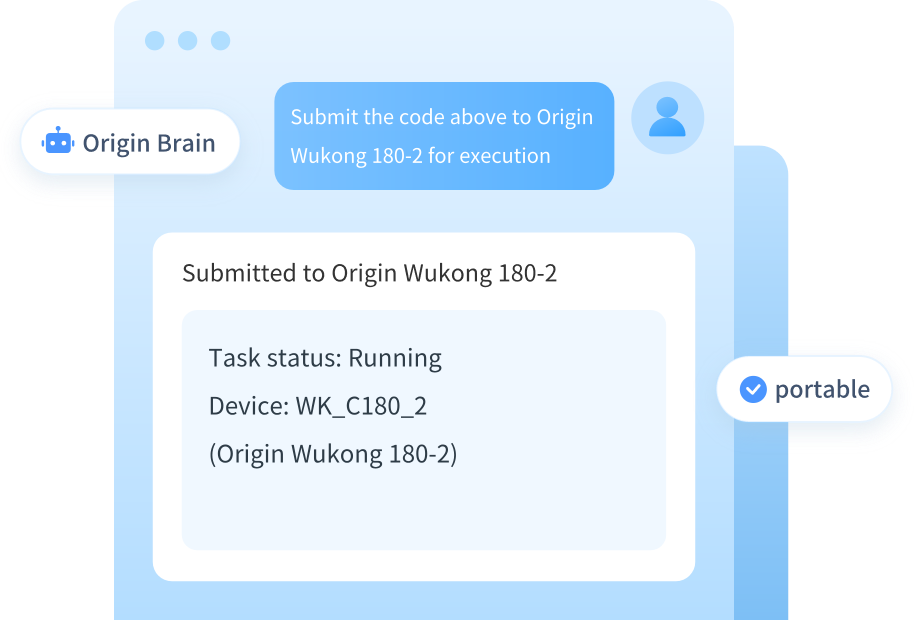
Origin Brain comes with the full Quantum Programming MCP built in — no installation needed, just one prompt to get started.
Experience MCP connection instantly without installation
Experience complete MCP without installation — an on-desktop workflow designed for developers, researchers, and professional users.
 Open Origin Brain, chat directly
- Built-in complete MCP connection, no configuration needed
- Direct access to the Origin Wukong quantum computer