 OriginQ Cloud

QPanda3 SKILL Library
Give your AI a quantum brain, turn quantum programming into dialogue
 Github
SKILL Overview
QPanda3 SKILL Library
AI ProgrammingQuantum AlgorithmsCircuit SimulationCompilation & TranslationMCP PartnerIt is the "Quantum Gene Injection" SKILL package we provide for AI assistants. After installation, your AI will become a quantum computing expert — helping write quantum programs, debug circuits, and submit tasks to real quantum computers via MCP.
 Note: Please try to use with Quantum Programming MCP (click to view) to achieve a complete quantum programming experience.
Capability Scope
Through loading the QPanda3 Quantum Programming SKILL Library, AI can help you complete the following tasks:
| Capability Domain | Specific Content |
|---|---|
| Quantum Circuit Construction | Support basic quantum gate operations (H, CNOT, RY, etc.), complex circuit combinations, conditional branches, measurement operations, etc. |
| Ready-to-use Classic Algorithms | VQE, QAOA, Grover search, Deutsch-Jozsa, quantum Fourier transform, quantum teleportation, GHZ state preparation, covering optimization, search, cryptography and other fields |
| Quantum Information Analysis | State vectors, density matrices, Pauli matrices, quantum channels (Chi matrices), entanglement analysis, etc. |
| Variational Quantum Circuits | Parameterized circuit construction, gradient calculation (finite difference/analytical derivation), various parameter optimization methods |
| Quantum Compilation and Translation | Tiling mapping, logic gate decomposition, intermediate representation conversion (QASM / OriginIR) |
| Noise Simulation | Support multiple noise models (bit flip, depolarization, phase damping, etc.), close to real hardware environment |
| Multiple Simulation Backends | CPUQVM (general simulation), GPUQVM (large-scale accelerated simulation) |
| Support Real-machine Invocation | Able to work with Quantum Programming MCP, complete real-machine status query, real-machine task preparation and submission, etc. |
Usage Method
This SKILL supports the following installation methods:

Import Folder / Compressed Package
Directly import the SKILL folder or .zip package in the client to complete SKILL installation.

Manually Place to Specified Path
Copy the SKILL folder to the corresponding skills directory of the tool to complete SKILL installation.

One - click Configuration Script
Execute the one - click configuration script to quickly complete MCP service configuration and SKILL synchronization installation in the tool.
Note: If you find the above installation methods difficult, you can also send the SKILL folder to AI and tell AI: Help me install this SKILLSpecific Installation Steps:
Open the tool's settings page, find the relevant entry for SKILL settings (names vary by tool, such as “Skills”, “Manage SKILL”, etc.), import the SKILL folder and save to enable.
Taking CodeBuddy as an example:
Open the CodeBuddy settings page
Select "User SKILL" or "Project SKILL" as needed
Choose the qpanda3 - programming folder and confirm
Click "Skills"
Click "Import SKILL"
Copy the qpanda3 - programming folder to the corresponding tool's skills directory, restart or refresh the tool to take effect.
When installing SKILL in local AI Coding tools, it is usually divided into global skills and project skills. The common tool installation paths are as follows:
| Tool | User/Global Skills Directory | Project Skills Directory |
|---|---|---|
| OpenCode | ~/.config/opencode/skills/ | <project>/.opencode/skills/ |
| Claude Code | ~/.claude/skills/ | <project>/.claude/skills/ |
| Gemini CLI | ~/.gemini/skills/ | <project>/.gemini/skills/ |
| CodeBuddy | ~/.codebuddy/skills/ | <project>/.codebuddy/skills/ |
| Cline | ~/.cline/skills/ | Global Only |
Note: Web - based AI tools usually do not involve local directories. You can import folders or .zip packages in the platform's Skills management interface.It can help you automatically complete MCP configuration and SKILL installation.
| What you need | Version requirements | Description |
|---|---|---|
| Python | ≥3.11 | Python needs to be installed on the computer |
| UV | — | A Python package management tool, the script uses it to automatically handle dependencies |
Currently, a variety of AI coding tools are supported: OpenCode, Claude Code, Codex, Gemini CLI, CodeBuddy, Cline, and others; you may also run the script below to check the supported list in real time, which we update periodically.
uv run prepare_qpanda3_ai_kits.py listOpen the terminal, cd to the directory where the script is located, and run the following command to complete:
uv run prepare_qpanda3_ai_kits.py prepare <Tool Name> -k <Your API_Key>For example, if you are using CodeBuddy, after running the following command, the script will automatically help you write the MCP server connection information into CodeBuddy's configuration file, and then install the QPanda3 quantum programming skill package to CodeBuddy's skill directory:
uv run prepare_qpanda3_ai_kits.py prepare codebuddy -k <Your API_Key>The corresponding to the 6 AI coding tools in the command line is as follows:
| Tool Name | Command Line Parameter Name |
|---|---|
| OpenCode | opencode |
| Claude Code | claude |
| Codex (OpenAI) | codex |
| Gemini CLI | gemini |
| CodeBuddy | codebuddy |
| Cline | cline |
Script supports two installation levels:
| Level | Specific Content |
|---|---|
| Global (Default) | uv run prepare_qpanda3_ai_kits.py prepare <Tool Name> -k <Your API_Key> |
| Project - level | uv run prepare_qpanda3_ai_kits.py prepare <Tool Name> -k <Your API_Key> -p |
If you are unsure of which tools are installed, or wish to configure all installed tools in one go, execute the command below without specifying a tool name. The script will automatically scan your system, identify installed supported AI tools, and configure them individually:
uv run prepare_qpanda3_ai_kits.py prepare -k <Your API_Key>If you no longer need it in the future and want to clean it up, it's very simple:
To uninstall the configuration of a specific tool:
uv run prepare_qpanda3_ai_kits.py uninstall <Tool Name>To uninstall the configuration of all tools:
uv run prepare_qpanda3_ai_kits.py uninstallIf you forget how to use the command at any time, run the following command to view all commands and parameter descriptions:
uv run prepare_qpanda3_ai_kits.py helpVerification method
Under most circumstances, the SKILL does not require manual invocation after installation. When you raise similar questions in AI conversations, the AI will automatically activate this SKILL:

AI Trigger Example
Automatically identify and activate SKILL
In the conversation, type the following questions, and the AI will automatically call this SKILL:
 If the AI can output complete and standard pyqpanda3 code, it means the SKILL has taken effect.

Typical Code Example
AI - generated pyqpanda3 code example
The following is a standard pyqpanda3 code example generated with AI assistance:
from pyqpanda3.core import QCircuit,H,CNOT,QProg,measure,
CPUQVM

prog=QProg(2)
prog<<H(0)<<CNOT(0,1)<<measure(0,0)<<measure(1,1)

machine=CPUQVM()
machine.run(prog,1000)
print(machine.result().get_counts())
No Install, Try Now
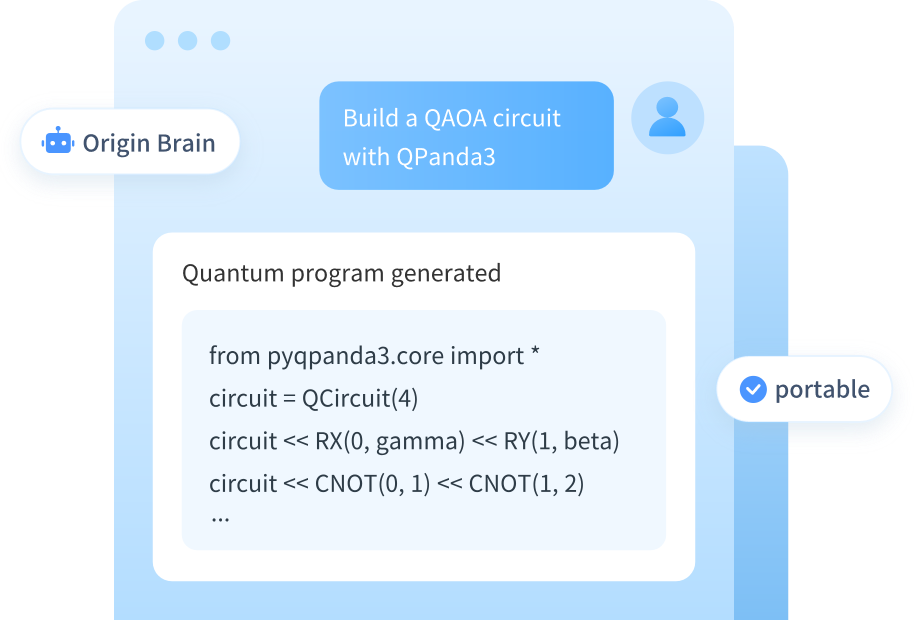
Origin Brain comes with the full QPanda3 SKILL Library built in — no installation needed, just one prompt to get started.
Experience the complete SKILL library Without Installation
Experience full QPanda3 quantum programming and knowledge Q&A without installation — an on-desktop workflow designed for developers, researchers, and professional users.
 Open Origin Brain, chat directly
- Built-in complete QPanda3 quantum programming skill library, no configuration needed
- Generate quantum algorithm & circuit code with a single sentence